 CodeCharge Studio
By using the Tools | Options... menu, you can access additional configuration options that further customize the CodeCharge Studio workspace. The Options window has a list of six categories each with a set of configurable options.
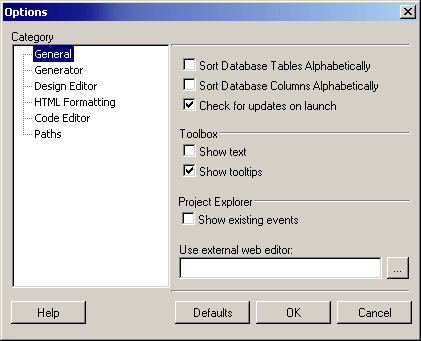
The general options of Figure 10-15 establish the basic features and functionality of the environment. Table 10-10 provides an overview of the various settings.
| Parameter | Description |
|---|---|
| Sort Database Tables Alphabetically | If selected, database tables used in the project will be ordered alphabetically rather than in the order in which they appear in the database. |
| Sort Database Columns Alphabetically | If selected, database fields listed in the CodeCharge Studio IDE during design time will be ordered alphabetically rather than in the order in which they appear in the database. For instance, when using the builders to create components, the fields will be shown alphabetically if this option is selected. |
| Check for updates on launch | If selected, CodeCharge Studio will connect to the internet and check for new software updates. If there are new updates, a window will open with the details of the update including where to obtain it. |
| Show text | If selected, caption text will appear next to each of the buttons in the Toolbox |
| Show tooltips | If selected, caption text will appear as a tooltip when the mouse pointer hovers over each of the buttons in the Toolbox. |
| Show existing events | If selected, the existing events will be shown in the Project Explorer. |
| Use external web editor | In this field, you can specify the path to an external editor that you would like to use to edit the HTML pages. |
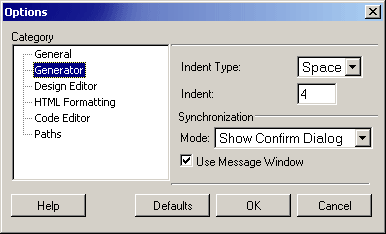
The generator settings of Figure 10-16 provide basic information for the visible functions of the code generator. Table 10-11 provides a description of the various settings.
| Parameter | Description |
|---|---|
| Indent Type | Select whether to uses spaces or tabs to indent the generated code |
| Indent | Specify the number of spaces to be used for indenting |
| Synchronization Mode | During the process of creating a page, the user often deletes some components from the page and this is subsequently detected by CodeCharge Studio during the process of synchronization. This option allows you to specify the action to be taken when synchronizing page content:
|
| Use Message Window | If selected, the Message window will also be used to display synchronization warnings. |
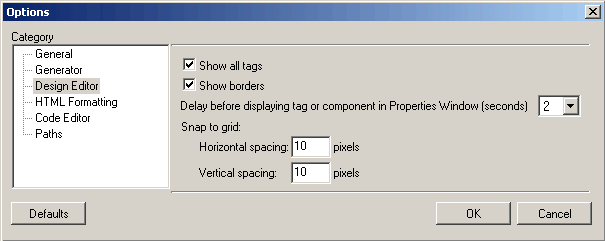
The generator settings provide basic information for the functional features of the design editor. The following table provides a description of the various settings.
| Parameter | Description |
|---|---|
| Show All Tags | If selected, Line Break and Paragraphs Breaks will be shown using icons. |
| Show Borders | If selected, a border will be shown around all HTML tables in Design mode. |
| Delay before displaying tag or component in Properties Window (seconds) | Set the amount of time to wait before switching the Properties window to the currently selected control. |
| Horizontal spacing | While in design mode, the document window has an imaginary "snap to grid" that can be used to position elements on the page using the Positioning toolbar. Use this option to specify how far apart the grid lines should be horizontally. |
| Vertical spacing | Specify how far apart the lines of the snap to grid should be vertically. |
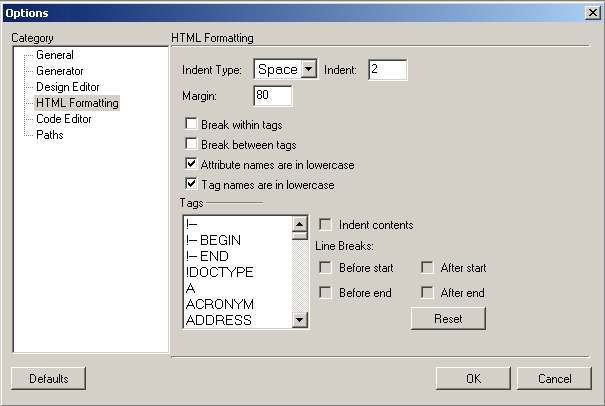
The generator settings of Figure 10-18 provide basic information for formatting of HTML within the editor. Table 10-13 provides a description of the various settings.
| Parameter | Description |
|---|---|
| Indent Type | Select whether to use space or tab indenting. |
| Indent | Specify the number of spaces to be used for indenting. |
| Margin | The maximum number of characters that a string in a page can span. |
| Break within tags | If a tag is longer than the Margin length, a line break will be inserted even if the tag is not closed. |
| Break between tags | Line breaks for strings longer than the Margin length will only be inserted in between tags. |
| Attribute names are in lowercase | Attribute names for tags will be in lowercase. |
| Tag names are in lowercase | Tag names will be in lowercase. |
| Tags | |
| Indent Contents | Specify whether a specific tag will be indented. |
| Line Breaks | |
| Before Start | Insert a Line break before the start of the tag. |
| After Start | Insert a Line break after the start of the tag. |
| Before End | Insert a Line break before the end of the tag. |
| After End | Insert a Line break after the end of the tag. |
| Reset | Revert to the factory settings. |
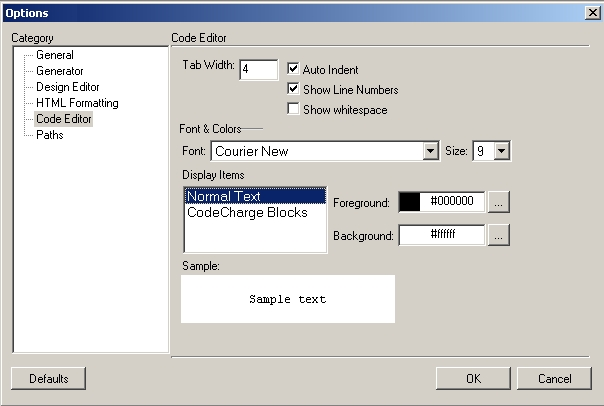
The generator settings provide basic information for internal formatting of the code editor. Table 10-14 provides a description of the various settings.
| Parameter | Description |
|---|---|
| Tab Width | Specify the number of spaces to be used to represent a tab. |
| Auto Indent | If selected, code will be indented automatically. |
| Show Line Numbers | If selected, line numbers are shown on the left margin of the code editor. |
| Show whitespace | If selected, white spaces are visually represented by periods (.) and tabs are represented using the symbol >>. |
| Font & Colors | |
| Font | Select the font in which the code will be displayed. |
| Size | Select the size of the display font. |
| Display Items | Select either Normal Text or CodeCharge Blocks to configure their display options. |
| Foreground | Select the foreground color for the selected display item. |
| Background | Select the background color for the selected display item. |
| Sample | This shows a preview of the display item according to the selections made. |
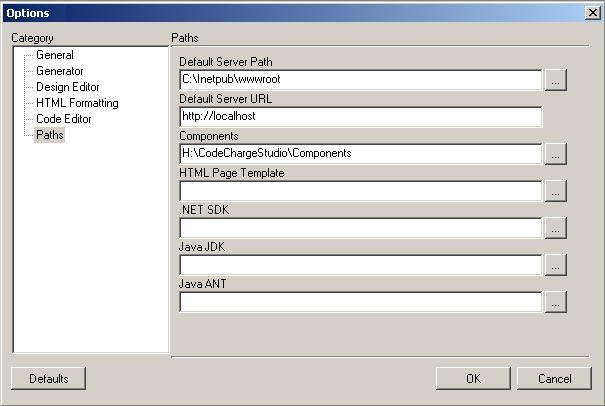
The generator settings of Figure 10-20 provide basic information for internal formatting of the code editor. Table 10-15 provides a description of the various settings.
| Parameters | Description |
|---|---|
| Default Server Path | Specifies the default path to the web server where pages will be published. |
| Default Server URL | Specifies the HTTP URL that maps to the default server path mentioned above. |
| Components | Specifies the path where CodeCharge Studio components are located. |
| HTML Page Template | Specifies the path to an HTML template page that will be used as the base for all newly created pages. |
| .Net SDK | Specifies the location of the .Net framework SDK if available. |
| Java JDK | Specifies the location of the Java JDK if available. |
| Java ANT | Specifies the location of the Java ANT if available. |