 CodeCharge Studio
A record form is used to add, edit or delete database content. The record form makes these operations possible by providing three different buttons which can be used to initiate any one of the three operations. Unlike the grid or editable grid forms which are capable of handling multiple records at the same time, the record form can deal with only one database record at a time.
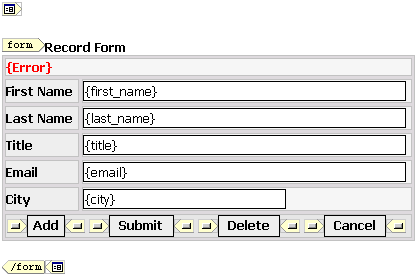
Record forms are usually used in conjunction with grid forms. Before the record form is able to open a record, it needs to be provided with the primary key value of the record to be opened. In this case, a Link field from a grid form could be used to submit the primary key value to the record form. For example, the following link has a URL parameter called userid [<http://localhost/mySite/default.asp?userid=1>] which could be captured by the record form and used to open the database record whose userid value is 1.
Record forms can be constructed using the Record builder or you can manually construct one using the barebones record form provided under the Forms tab of the Toolbox. Unless you need to exercise full control over the creation of the record form, it is recommended that you use the Record Builder.
In design mode, a record form appears between the glyphs  and
and  . You can click on either of these glyphs to expose the record form properties under the Data tab of the Properties window. Alternatively, you can click on
the name of the record form in the Project Explorer.
. You can click on either of these glyphs to expose the record form properties under the Data tab of the Properties window. Alternatively, you can click on
the name of the record form in the Project Explorer.
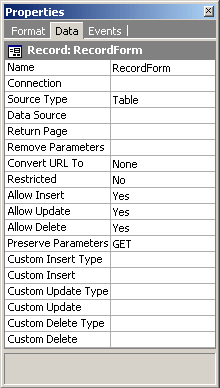
| Property | Description |
|---|---|
| Name | A unique name for the form. |
| Connection | The database connection used by the form. |
| Source Type | The type of database resource that provides the data for the form. |
| Data Source | The table, SQL query or stored procedure that provides the data for the form. |
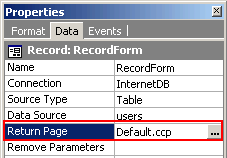
| Return Page | The page to which the user is redirected to after the form has been submitted successfully. |
| Remove Parameters | Specify a common separated list of form or URL parameters which should not be propagated when the form is submitted. |
| Convert URL To | Specify whether the URL should be automatically converted to an absolute URL or secure URL for the SSL protocol (https://) |
| Restricted | Specify whether users must be authenticated before being able to view the form. |
| Allow Insert | Specify where the form can be used to insert new data. |
| Allow Update | Specify where the form can be used to update existing data. |
| Allow Delete | Specify where the form can be used to delete existing data. |
| Preserve Parameters | Specify whether Get or Post parameters should be preserved when the form is submitted. |
| Custom Insert Type | If you wish to override the default insert mechanism, select the type of method to be used to perform the insert operation. |
| Custom Insert | Specify the table, SQL query or stored procedure to be used for the custom insert. |
| Custom Update Type | If you wish to override the default update mechanism, select the type of method to be used to perform the update operation. |
| Custom Update | Specify the table, SQL query or stored procedure to be used for the custom update. |
| Custom Delete Type | If you wish to override the default delete mechanism, select the type of method to be used to perform the delete operation. |
| Custom Delete | Specify the table, SQL query or stored procedure to be used for the custom delete. |
Similar to all other forms, the Data Source property of a record form is used to specify the database resource that will provide the data for the form. The data source can be a table, SQL query or a stored procedure. To access the Data Source dialog, click on the  button next to the Data Source property.
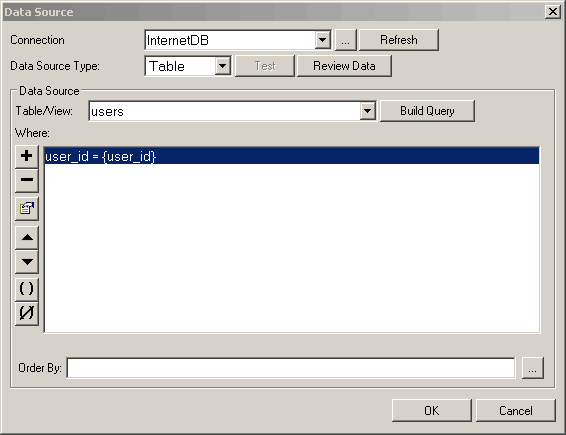
Invariably, all record forms must have at least one input parameter specified under the Where section of the Data Source window. An input parameter must be specified because the record form must receive a primary key value in order for it to retrieve a record. In many cases, the primary key for a table is composed of a single field. However, it is also possible to have a database table which has a complex primary key made up of multiple fields. If the primary key is complex, then the record form should have an input parameter for each of the fields that make up the complex primary key.
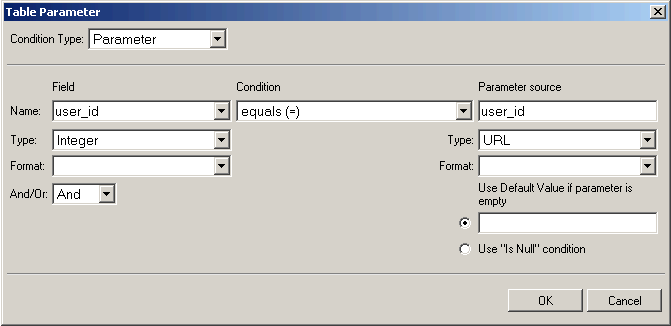
An input parameter has been defined for the user_id field which happens to be the primary key field of the users table. To add an input parameter click on the  button under the Where section. You can also double-click on an existing input parameter to open the Table Parameter window where it is configured.
More often than not, the Data Source for a record form will be a single database table. This is because the record form can insert, update or delete records from a single table without requiring special configuration. In other words, if a single table is used as the data source, a single SQL statement can be executed to perform any one of the three operations. However, if the data source is a custom SQL query or stored procedure, the implication is that each of the three operations (insert, update, delete) must also be configured separately since the custom SQL query or stored procedure used to select the record cannot be used to insert, update or delete.
A record form has Custom Insert, Custom Update and Custom Delete properties which are specifically intended to be used when the data source is not a single table. Each of these three properties has to be configured for record forms that are not based on a single database table. Of course, if you want to have a record form which can view but not insert, update or delete records, you can do without configuring these properties. If you do so, you should also set the Allow Insert, Allow Update and Allow Delete properties to No so that the user does not attempt to perform an operation that is not supported.
To configure the Custom Insert, Custom Update or Custom Delete property, click on the button next to the property. The screenshot below shows the Custom Insert window where you can configure the Custom Insert property.
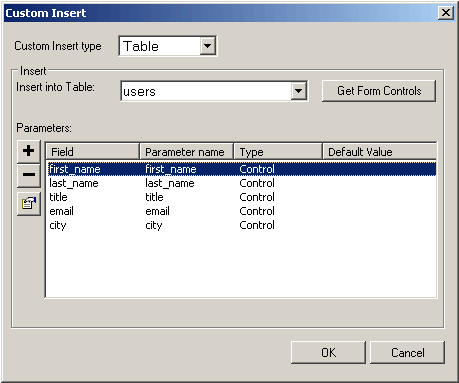
When configuring the property, you have the choice of using a table, SQL query or stored procedure. Use the Custom Insert Type field to select the method you intend to use. For whichever method you select, you will need to specify input parameters for the fields involved in the operation. In the screenshot above, the Custom Insert Type is set to Table and five input parameters (first_name, last_name, title, email and city) have been defined. This means that the value of these five input parameters will be used in the insert operation.
In the case of a custom delete operation, you would only need to specify an input parameter for the primary key field(s). This is because when a record is being deleted, the record form would only need to know the primary key value in order to identify and delete the record.
For each of the operations that a record form can perform (Insert, Update, Delete), there is a corresponding button which is used to initiate the operation.
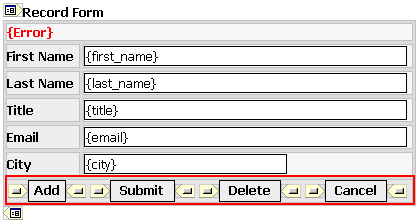
In some cases, you can also have a Cancel button which cancels the current operation and returns the user to the page specified in the Return Page property of the form.
If you use the Record builderto construct the record form, you can specify whether the generated record form should have all or some of the buttons.
During runtime, the underlying code determines which of the buttons should be shown. If the record form receives an input parameter and is able to retrieve a database record, then the Update and Delete buttons are shown. On the other hand, if the record form does not receive any input parameter or is unable to retrieve a record, then only the Insert button is shown since you cannot update or delete a non-existent record. If there is a Cancel button in the form, it is always shown regardless of the operations that could be performed.