 CodeCharge Studio
The Record Builder can be used to automate the process of creating record forms where database content can be inserted, edited or deleted. To begin the process, click on the Record Builder option in the Builders tab of the Toolbox.
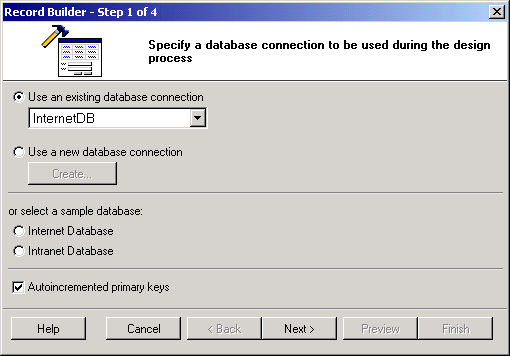
The first step involves selecting or creating a database connection from where the data to be edited or added using the record form is stored. You can select one of the existing database connections, create a new connection or select one of the sample databases. Once done click Next to proceed.
| Parameter | Description |
|---|---|
| Data Source | Select the table from where the data will come from. |
| Refresh | Click this button to refresh the connection if you make changes to the database after having begun using the builder. |
| Primary Key | Select the primary key field in the table. |
| Available Fields | This listbox shows all the fields available in the table. |
| Fields for the Record | These are the fields to be shown in the record form. They are selected from among the Available Fields. |
 |
Select an Available Field then click this button to add it to the form. |
 |
Click this button to add ALL Available Fields to the form. |
 |
Select a form field then click this button to remove it from the form. |
 |
Click this button to remove all fields from the form. |
 |
Select a form field then click this button to move it upwards in the order of appearance. |
 |
Select a form field then click this button to move it downwards in the order of appearance. |
| Control Type | Specify the control type to be used for each of the fields in the form. |
Once you have made the selections, you can click on the preview button to see how the form looks like and maybe make some adjustments. Once done, click Next to proceed.
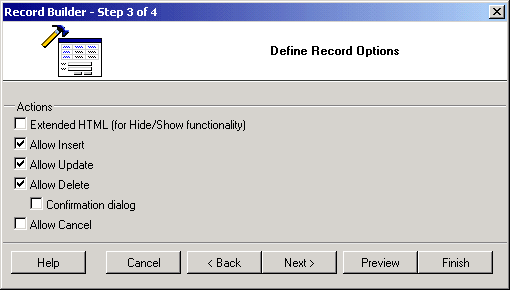
You now have to decide the kind of functionality that will be available in the record form. You can uncheck any of the options if you don't want the form to have the corresponding functionality.
In the final step, you optionally select a theme for the record form. The Preview portion of the window shows how the form would look like with the currently selected theme.
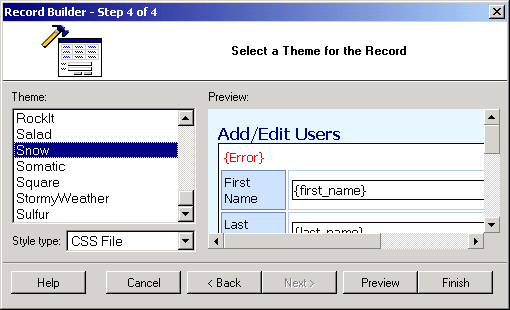
Click on the Finish button to close the builder and generate the form.
