 CodeCharge Studio
One of the finer points of using CodeCharge Studio is the ability to produce professional web pages without expending a lot effort, as far as styles are concerned. CodeCharge Studio allows you to select from a range of pre-configured themes when creating a project, page or form.
Broadly speaking, a theme defines the styles to be applied to various elements within a page. The appearance of most HTML tags can be influenced by specifying attributes that define properties such as color, size, border, or decoration. Using a theme provides a centralized way of uniformly specifying the appearance of HTML elements.
When applying a theme to a project, page or form, there are four possible methods in which the theme can be applied.
An HTML theme is one in which the styles are specified within the HTML tag and the styles apply only to the tag in which they are specified. The bgcolor and style attributes apply directly to the td tag for a table cell.
<td bgcolor="#B39034" style="border-style: solid; border-width: 1px;" nowrap>
The style attributes are specified inline within the HTML tag. As such, each HTML component that needs to be stylized has to have the style specified within the tag. The implication of this is that the page can become rather large as each tag contains a list of style attributes and their values.
This style type uses Cascading Style Sheets (CSS), which supersede the limited range of presentation available in HTML. Cascading Style Sheets make it possible to specify rules that determine the presentation of a hierarchy of elements. For instance, the style specified within a td tag can be used to influence the appearance of not only the td tag but also the text within the td tag.
Rather than being stored inline within the HTML document, the style rules are stored in an external style sheet file which has the extension .css. This external file is linked to the HTML document using code.
<link rel="stylesheet" type="text/css" href="Style.css">
The code that links to the external style sheet file is usually placed within the <head></head> tags of the HTML document. The style sheet file contains rules for all the styles to be used in the page. A rule is composed of a selector and a declaration for the selector. H1 is the selector and "color: blue" is the declaration. The declaration has two parts: property (e.g., color) and value (e.g., blue). Although H1 is an HTML tag, you can also create your own selectors, as demonstrated by .CustomSelector.
H1 { color: blue }
.CustomSelector { background-color: #DEDBDE; }
Within the actual HTML document, any tag for which a rule has been defined automatically inherits the properties defined by the rule. For instance, if the page has some text within an H1 tag, the text color would be blue. If the rules included custom selectors, the rules can be applied by specifying the name of the selector within the class attribute of the tag.
<table class=" CustomSelector">
This style type is similar to the CSS file style, but differs only in the method used to store the style definitions. Whereas the CSS file style stores the styles in an external .css file, the CSS page style stores the styles inside the specific HTML document within <style></style> tags.
<style type="text/css">
<!-- BODY { font-family: Tahoma, Verdana, Arial, Helvetica; font-size: 13px; }
TABLE { font-family: Tahoma, Verdana, Arial, Helvetica; font-size: 13px; } -->
</style>
With the styles placed within the HTML document, you can edit both the styles and the HTML code in one location. On the other hand, it would not be possible to edit the styles within a style sheet editor as could be completed if the styles where in a separate .css file.
This style type is also similar to the CSS file style, but it differs only in the method used to store the style definitions. As the name suggests, the styles are placed directly within the HTML tags using the style attribute.
<td nowrap style="border-style: solid; border-width: 1px; background-color: #B29034;
                  color: #FFFFFF; font-size: 13px; font-weight: bold;">
This method is similar to the HTML style where the attributes are within the HTML tag. This means that the HTML file can get rather large as the styles are repeated within each tag.
Unless you have specific reasons to do otherwise, it is recommended that you use the CSS file style that results in modularity as well as the smallest possible HTML file size. Additionally, you can easily switch styles by simply specifying another .css style file.
When you create pages or forms using the Builders, the last step usually involves the selection of a theme to be applied to the new creation. For instance, if you use the Application Builder to create multiple pages, the theme you select is applied to all the new pages. Later on, you can use the Project | Change Theme... menu option to change to a different theme.
Note that you are not restricted to having only one theme per project. When you create new forms using any of the Builders, you can specify a different theme to be applied to the new creations. You can also change the theme for an existing form by right clicking on its name in the Project Explorer window and selecting the Edit... option.
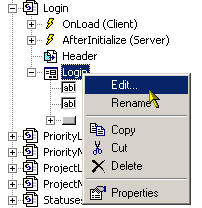
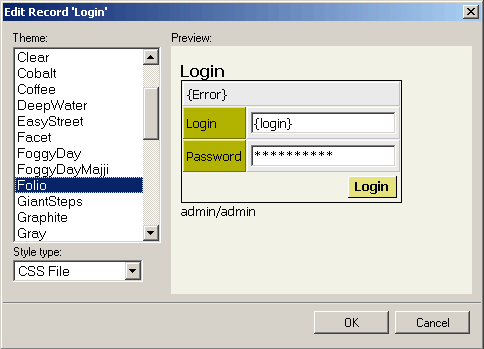
Once selected, the Edit Record dialog appears so that you can select a new theme to be applied to the selected form.
You can edit any of the existing themes and apply properties of your choice. It is recommended that you make a backup of the files in the \Components\Themes folder of your CodeCharge Studio installation before you edit any of the themes. This allows you to revert back to the original files if necessary. Also, instead of editing any of the original themes, you should consider creating a copy of the theme then making the changes to the copy.
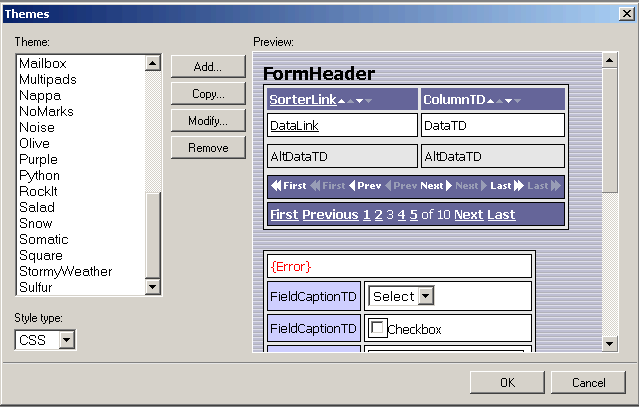
Use the Tools | Themes... menu option to open the Themes dialog. To edit a theme, select the theme from the list of available themes then click the Modify... button.
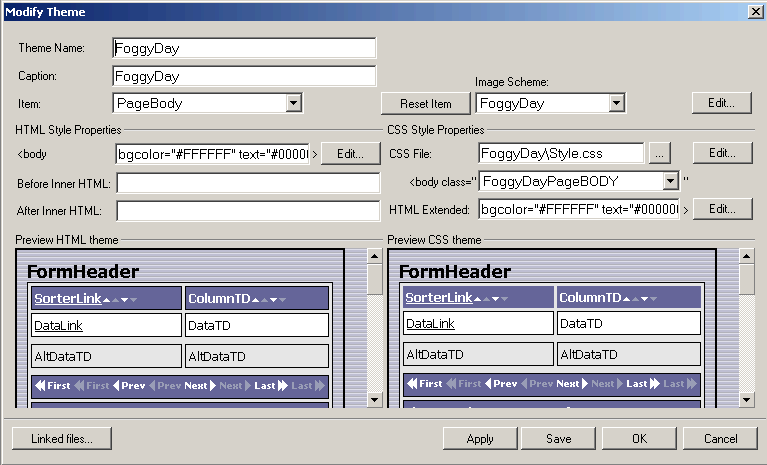
The Modify Theme dialog contains the properties for a selected theme. Within the dialog, the style properties to the right pertain to the HTML version of the style while the style properties on the left are for the CSS versions of the theme. Table 5-12 contains the parameters for the dialog.
| Parameter | Description |
|---|---|
| Theme Name | This is the name of the theme. The name should not have any special characters or spaces. |
| Caption | This is the text used to represent the theme when a list of themes is provided for selection. The caption can be the same as the theme name and it can also contain spaces. |
| Item | This combo box contains a list of the possible elements for which a style can be defined. The values displayed in the rest of the style fields depend on the selection made in this field. |
| Reset Item | If you make changes to the value of one of the items, you can click this button to discard the change and revert to the previous value. |
| Image Scheme | Use this combo box to select the image scheme for the theme. The image schemes are defined in the .cct files located in the \Components\Themes folder of your CodeCharge Studio installation. |
| HTML Style Properties | |
| <TagName> | The caption for this field changes depending on the selection made in the Item field. For instance, if PageBody is selected in the Item field, then the caption will be <body>. The value of this field makes up the contents of the tag appearing as the caption. You can click on the Edit... button to open a dialog window where you can configure the properties for the tag. |
| Before Inner HTML | Specify any HTML code that should appear before the contents of the tag defined in the <TagName > field above. |
| After Inner HTML | Specify any HTML code that should appear after the contents of the tag defined in the <TagName > field above. |
| Preview HTML theme | This portion of the dialog shows a preview of the various items configured for the HTML style. When you change the properties for any of the items, the changes are immediately reflected in the preview. |
| CSS Style Properties | |
| CSS File | Click on the [...] button to select a .css file containing the style rules. You can also click on the Edit... button to edit the contents of the .css file. |
| <TagName class=" | The caption for this field changes depending on the selection made in the Item field. For instance, if PageBody is selected in the Item field, then the caption will be <body class=" >. The value of this field is the cascading style sheet selector which is defined in the .css file. |
| HTML Extended | Enter any extra HTML that should appear within the tag in addition to the contents of the class property defined in the field above. |
| Preview CSS theme | This portion of the dialog shows a preview of the various items configured for the CSS style. When you change the properties for any of the items, the changes are immediately reflected in the preview. |
| Buttons | |
| Linked Files... | Click this button to view, add or remove the external files that are linked to the theme. For instance, the .css file for the theme is one of the linked files. |
| Apply | After making changes to any of the tag definitions, click on this button to apply the changes so that they can be shown in the style preview. |
| Save | Save changes to the theme files. |
| Ok | Save changes and close the dialog box. |
| Cancel | Close the dialog without saving the changes made. |