 CodeCharge Studio
The Properties Window
As mentioned earlier, the Properties window acts in conjunction with the Project Explorer as well as the Document window. The Properties window consists of three tabs (i.e., Format, Data, Events). You will notice that the contents of each of the tabs in the Properties window changes according to the currently selected element in the Project Explorer or Document window.
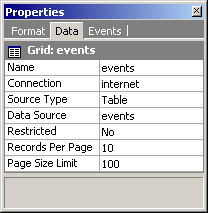
When using the Properties window, a caption that appears between the tabs and the list of properties displays the type and name of the currently selected element. For example, in the illustration below, a Grid form called events is the currently selected element.
It is advisable to make a habit of checking the caption before setting any property or event values so as not to end up making changes to the wrong element.
All the items in the Format tab and the Data tab display properties and events in a Name-Value format. The name of the property or event appears to the left of the window while its attendant value, if any, appears to the right. In some of the properties, drop-down lists are used to specify a series of options from which to pick a value while in others you can simply type in a value. Additionally some properties use popup dialogs of varying complexity and functionality to specify the property's value.
Unlike the other windows that we have seen so far, the Properties window features its own Status bar that is used to display helpful information about the currently selected property. For instance, in the illustration below, the status bar at the bottom of the Properties windows displays information about the height property of the <TR> tag.
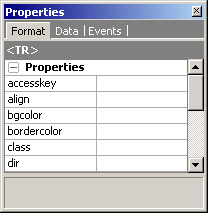
- Format Tab: The Format tab contains properties and events for various HTML/CSS elements. For the most part, the Format tab is mainly used when a page is opened in the Document window in HTML mode. In this case, selecting an HTML tag within the document will cause the Format tab to display the Properties and events applicable to that particular tag.
- Data Tab: Whereas the Format tab displays HTML/CSS properties and events, the properties displayed under the Data Tab are implemented at the programming language level and can usually be controlled programmatically. As with the Format tab, the properties displayed under the Data tab vary depending on the currently selected control in the Project Explorer or Document window.
- Events Tab: Events are designated points that occur during the process of code execution. Using the Events tab, it is possible to add Actions or custom code that would then be executed at the point in the code where the event occurs. Actions are predefined snippets of code that perform common functions such as validating a value such as a phone number or zip code or sending an email message. However, since there cannot be actions for all the possible operations that you may want to perform in an event, you can also enter your own custom code into an event. Note that any code added into a Server event is language specific. If you change the language in which the project pages are generated, you have to write new event code in the new language. However, Client events are implemented using browser scripting languages (JavaScript, JScript) and as such are universally applicable regardless of programming language choice.
See also:
Message Window
On-line, printable versions and updates