CodeCharge Studio
To start CodeCharge Studio select Start | Programs | CodeCharge Studio | CodeCharge Studio in Windows. CodeCharge Studio displays a splash screen when it loads, and it prompts you to create a new project or open an existing one.

If you like to create a new project (i.e., web application) then select New project and click OK. If you would like to open an existing project, choose and double-click it in the list of recently opened projects, or select More Files... and click OK to browse and find the project on your computer.
If you are evaluating CodeCharge Studio and have not registered it, CodeCharge Studio displays a splash screen with several options that allow you to view the license agreement, try the product, activate it, or exit. If your evaluation period has expired, the Try button will be disabled and you will have a choice to activate the product or exit by selecting the Quit button.

When you purchase CodeCharge Studio, you will receive a Serial Number that allows you to activate the product and remove the 20-day trial protection. Product activation also removes the message Generated with CodeCharge Studio, which is included at the bottom of web pages generated by the trial version of CodeCharge Studio.
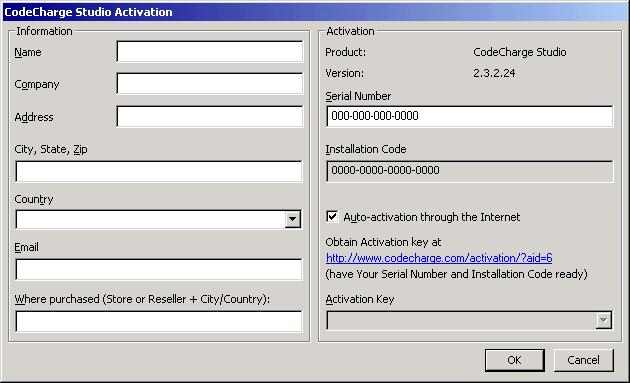
To activate CodeCharge Studio select Tools | Activate Product ... from the CodeCharge Studio menu, or press the Activation button on the initial splash screen that is shown after CodeCharge Studio is launched. In the CodeCharge Studio Activation dialog, enter the information that identifies you as a registered user. Note that the Name, Company, and Address are optional, but the Serial Number is a required field. Once you enter the Serial Number and other information, click OK to activate the product via the Internet.
CodeCharge Studio attempts to connect to a server that validates the Serial Number and provides an Activation Key that activates CodeCharge Studio. If you are behind a firewall, or don't have Internet access from the host computer, auto-activation is not possible. In such a case, uncheck the Auto-activation through the Internet option and visit the URL shown on the screen to obtain the activation key. You can also email sales@codecharge.com to obtain the activation key via email. In such case please include both your serial number and the Installation Code shown on the activation screen.
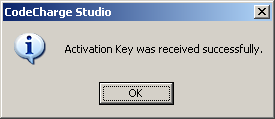
Once the activation key is obtained and the software is activated, the following dialog is displayed.