CodeCharge Studio
Controls are low-level components that can be placed on a page. They can be used to receive user input or to display content. Example controls are Label, TextBox, TextArea and ListBox.
Certain controls can be further categorized as "supporting controls" because their purpose is to enhance and support the functionality of forms, for example a Sorter and a Navigator can be used to allow users to sort and navigate the data presented in a Grid form.
In CodeCharge Studio you can utilize form controls and HTML controls.
Form controls are database-aware (data-bound) and are often used within forms. They can also be referred to as dynamic controls. Form controls can be added to the page from the "Forms" tab in the Toolbox:

Form controls that are placed on the page can be furthered defined by the set of properties assigned to them. Once you click on a control on the page, you should see the control's type and name with its associated properties in the "Properties" panel:
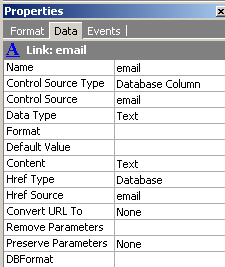
The control properties specify how the control should retrieve the data from the database, display the content and/or update the database. The control properties are described in the Component Reference section of the documentation.
Form controls are represented within the HTML page by the standard HTML tags except for their dynamic parts that are represented by special tags utilized by CodeCharge Studio and replaced with the dynamic content during run-time. For example the link control may look as follows within the HTML:
<a class="KnockoutDataLink"
 href="{Link1_Src}">{Link1}</a>
In the above example the values in curly braces {} represent the dynamic content that will be retrieved from the database or updated programmatically.
The remaining part of the link is made of the standard HTML according to HTML specifications. You can refer to the HTML reference documents available on the Internet for more information on the <a> tag and its attributes like "class" and "href".
CodeCharge Studio also offers the functionality to visually change a control's style, as well as apply custom block around the control in the form of extended HTML. You can right-click on a control to access those features:
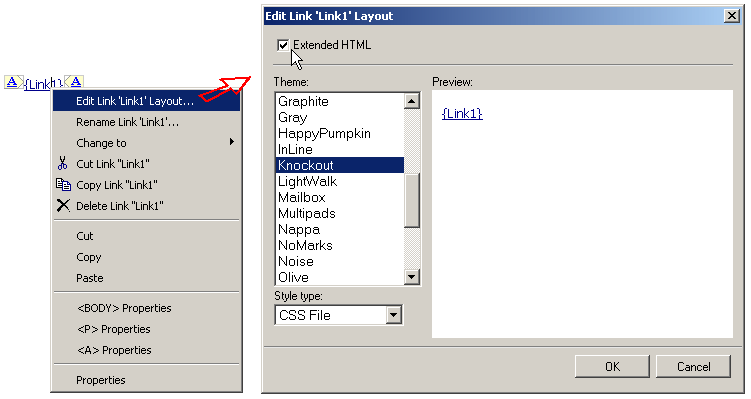
The Extended HTML functionality is provided to allow developers to hide controls dynamically and make their "Visible" property accessible. Once selected, CodeCharge Studio wraps the control into a set of custom tags that make up a custom block, which then can be hidden by using programming code. For example once the "Extended HTML" is applied, the Link may look as follows:
    <!-- BEGIN Link Link1 --><a
class="KnockoutDataLink"  href="{Link1_Src}">This
is a link</a><!-- END Link Link1 -->
Programmers can hide custom blocks by using programming code like: Link1.Visible = False (ASP).
Without the extended HTML only the label control can be hidden programmatically, since a label is automatically hidden if it doesn't have a value. Other controls usually contain static HTML that would be always displayed on the page, unless wrapped within a custom block (extended HTML) as shown above.
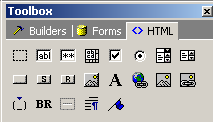
HTML controls are the standard HTML elements as defined in HTML standards and documented in a variety of resources on the Internet, for example at http://www.htmlref.com/reference/AppA/elements.htm. The CodeCharge Studio Toolbox provides a convenient way to add HTML controls to a page, as shown below: