 CodeCharge Studio
The process of deploying Java projects is relatively straightforward, because almost all modern Java servers support Web Application Archive (WAR) standard for java applications deployment. The details of server configuration and deployment process may vary from server to server, but usually it means specifying the path to the generated war file and context path to the web application. Many servers support auto deployment, when you are only expected to copy generated war file to the particular directory at server and server will do the remaining job for you.
CodeCharge Studio has several project properties that can affect the application deployment.
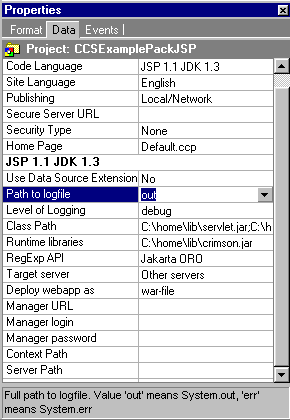
The last five properties are needed to configure Tomcat 4.0 manager application for remote Tomcat administration (when Target server set to Tomcat 4.0). You may leave them empty for other target servers.
Normally you will have no problems with Java deployment with any Java Application Server that supports Servlets version 2.2 specification from Sun. The details of deployment process for several popular Java Application servers follows.
Check that DB drivers are in class path of your server. Choose appropriate scenario and change properties marked red.
Before code generation verify that Use Data Source site property is set to No. Fill in connection properties to indicate Driver class name, Database url, user login and password. Ensure that your database driver is in your application server class path. Place generated war file to where appBase attribute of Virtual Host configuration element points to. Generally it is Add Context element as a child to Host element in your server.xml configuration file.
path - is the context path of your application. docBase is absolute or relative to appBase path to the war file.
Before code generation verify that Use Data Source site property is set to Yes. Set connection DataBase URL property to name is a JNDI name as indicated in your CCS Connection properties.
Check that DB drivers are in class path of your server. Choose appropriate scenario and change properties marked red. id is the context path of your application. app-dir is absolute or relative to global app-dir path to the war file.
res-ref-name is a JNDI name as indicated in your CCS Connection properties.
Set Use Data Source site property appropriately to indicate whether you want to use DataSources in your code.
If you want to work with DataSources and you have not configured it already add and configure JDBC Pool and DataSource to your server as described in Bear in mind that weblogic JNDIName property should be equal to JNDI Name property of CCS connection. Install your application as described in CodeCharge Studio requires SAX 2.0 and JAXP 1.1 libraries to work with generated JSP. However WebLogic 5.1 goes with its own XML parser located in lib/weblogicaux.jar. You have to replace those libraries with the newer ones from<http://xml.apache.org/> or
<http://java.sun.com/xml/>.
To accomplish this you can:
Because WebSphere 4.0 doesn't support autodeployment of war files, it is necessary to do the following:
Scenario 2. Deployment through Context configuration (DataSource extension is not used)
</tomcat_home>
  <Context path="/JSPPortal"docBase="JSPPortal.war">
</Context>
Scenario 3. Deployment through Context configuration (DataSource extension is used)
java:comp/env/jdbc/Connection1. Where Connection1 is name of your connection. Define Context element as described in previous scenario. Add Resource child element with ResourceParams to the Context element:
<Resource name="jdbc/Connection1" auth="Container" type="javax.sql.DataSource"/>
  <ResourceParams name="jdbc/Connection1">
    <parameter>
      <name>user</name>
      <value>User Name</value>
    </parameter>
    <parameter>
      <name>password</name>
      <value>User Password</value>
    </parameter>
    <parameter>
      <name>driverClassName</name>
      <value>Driver Class Name</value>
    </parameter>
    <parameter>
      <name>driverName</name>
      <value>Database Connection URL</value>
    </parameter>
  </ResourceParams>
Resin 2.0 scenarios
Scenario 1. Auto-deployment from webapps directory (DataSource extension is not used)
Scenario 2. Deployment through web-app configuration (DataSource extension is not used)
Add Context element as a child to Host element in your resin.conf configuration file.
<web-app id="/JSPPortal"
 app-dir="c:/projects/Portal/JSPPortal.war"/>
Scenario 3. Deployment through web-app configuration (DataSource extension is used)
java:comp/env/jdbc/Connection1. Where Connection1 is name of your connection.
<resource-ref>
  <res-ref-name>jdbc/Connection1</res-ref-name>
  <res-type>javax.sql.DataSource</res-type>
  <init-param driver-name="Driver Class Name"/>
  <init-param url="Database connection URL"/>
  <init-param user="User Name"/>
  <init-param password="User Password"/>
  <init-param max-connections="20"/>
  <init-param max-idle-time="30"/>
  <init-param enable-transaction="false"/>
</resource-ref>
WebLogic 7.0 scenarios
Scenario 1. Auto-deployment from applications directory (DataSource extention is not used)
Scenario 2. Deployment through Administration Console
WebLogic 5.1 scenarios
wlconfig.exe -classpath c:\java\xerces-2_0_1\xercesImpl.jar;C:\java\xerces-2_0_1\xmlParserAPIs.jar
Websphere 4.0 scenario
"c:\ant\lib\jaxp.jar;c:\ant\lib\crimson.jar". These files will be copied to the WEB-INF\lib directory of the application.
Tomcat + Apache scenario
Scenario 1. MOD_JK connector.
apache/modules directory.
$CATALINA_HOME/conf/jk/ directory.
workers.tomcat_home=$(CATALINA_HOME)
workers.java_home=$(JAVA_HOME)
ps=\
worker.list=ajp13
worker.ajp13.port=8009
worker.ajp13.host=localhost
worker.ajp13.type=ajp13
LoadModule jk_module modules/mod_jk.dll
AddModule mod_jk.c
JkWorkersFile "$CATALINA_HOME/conf/jk/workers.properties"
JkLogFile "$CATALINA_HOME/logs/mod_jk.log"
JkLogLevel info

<VirtualHost localhost>
    ServerName localhost
    DocumentRoot $CATALINA_HOME/webapps/
    JkMount /*.jsp ajp13
    JkMount /*.do ajp13
</VirtualHost>
<Connector className="org.apache.ajp.tomcat4.Ajp13Connector"
               port="8009" minProcessors="5" maxProcessors="75"
               acceptCount="10" debug="0"/>
Scenario 2. WARP connector.
LoadModule webapp_module modules/mod_webapp.so
AddModule mod_webapp.c
WebAppConnection warpConnection warp localhost:8008
WebAppDeploy JSPPortal warpConnection /Portal/
On-line, printable versions and updates