 CodeCharge Studio
Search forms are used to enter values into controls such that when the values are submitted, they are used to search and retrieve records from the database. Search forms are used in conjunction with grid or record forms whereby the search form is used to submit the search criteria and the grid or record form displays the retrieved records that match the search criteria.
In their simplest form, search forms simply submit search criteria. However, you can use the Search Builder to create complex search forms that also determine the number of records to be displayed per page, the order in which the records are displayed as well as the SQL operator to be used to perform the search. To begin the process of creating a search form, click on the Search Builder option in Builders tab of the Toolbox.
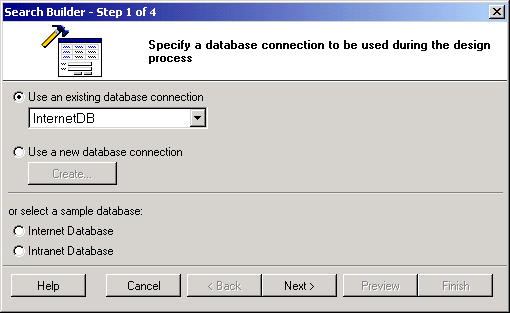
Select or create the database connection whose fields will be used in the search. You can select one of the existing database connections, create a new connection or select one of the sample databases. Once done click 'Next' to proceed.
This is the main step in creating the search form and involves selecting fields to be shown in the form as well selecting other display options.
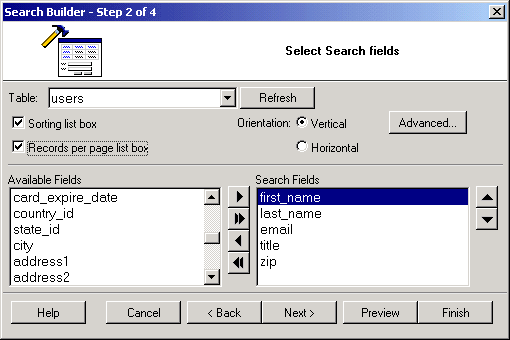
| Parameter | Description |
|---|---|
| Table | Select the database tables whose fields will be used in the search form. |
| Sorting list box | If selected, the search form will have two listboxes for sorting. The first one will contain a list of all the available fields so that the user can select the field to sort by. The user will also be able to indicate the desired sort order (ASC, DESC) using the second listbox. |
| Records per page list box | If selected the search form will have a listbox that can be used to specify the number of records to be returned per page after the search is conducted. |
| Orientation | Specify whether the search form should be vertically or horizontally oriented. |
| Advanced... | Click on this button to specify the advanced search option such as submit method, type and other properties. If AND is selected, the search form will have an input form control for all the fields. Otherwise, if OR is selected, the search form will have only one input form control. Any value entered into the single control will be used to search against all the fields in the form. After you set the advanced options you can use the 'Preview' button to see how the form looks like with either option selected. |
| Available Fields | This listbox shows all the fields available in the table or view. |
| Search Fields | These are the fields to be shown in the search form. They are selected from among the Available Fields. |
 |
Select an Available Field then click this button to add it to the form. |
 |
Click this button to add ALL Available Fields to the form. |
 |
Select a form field then click this button to remove it from the form. |
 |
Click this button to remove all fields from the search form. |
 |
Select a form field then click this button to move it upwards in the order of appearance. |
 |
Select a form field then click this button to move it downwards in the order of appearance. |
| Control Type | Specify the control type to be used for each of the fields in the form. |
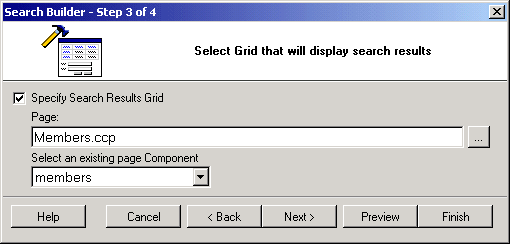
Next, you can optionally specify a page and a grid form to which the search will apply. You can jump this step if the form is not yet available or you intend to use the search form for a different purpose.
In the final step, you can optionally select a theme to be used to display the form.
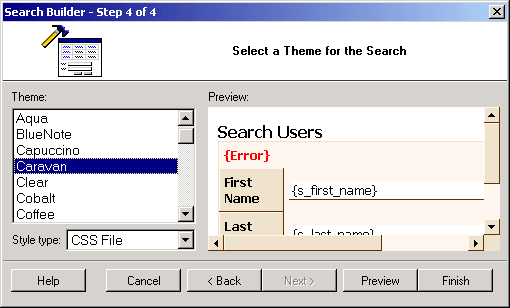
Click the Finish button to close the builder and generate the search form.