 CodeCharge Studio
Often times a grid form is used in conjunction with a record form such that the grid form is used to display multiple records and a link is provided from the grid form records to the record form where the details of the record can be viewed and edited. For this purpose, the Grid and Record builder can be used to produce a grid form with an attendant record form. To begin, click on the Grid and Record Builder option in the Builder tab of the Toolbox.
Select or create the database connection whose fields will be used in the two forms. You can select one of the existing database connections, create a new connection or select one of the sample databases.
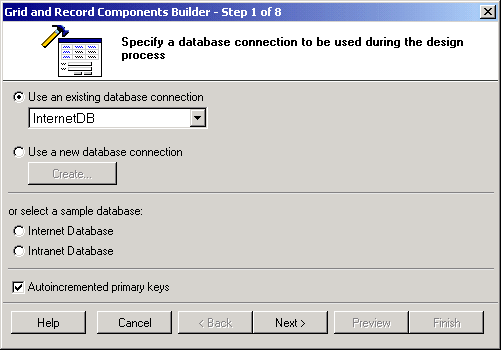
| Parameter | Description |
|---|---|
| Autoincremented primary keys | Select this option if the database table has an autoincremented primary key field. This option prevents the builder from creating a record form with the primary key field since it will be provided by the database when a new record is inserted. |
Now select the fields to be shown in the grid form.
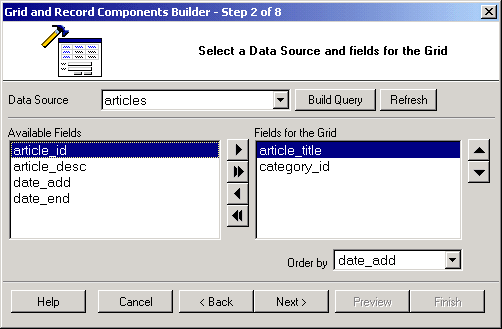
| Parameter | Description |
|---|---|
| Data Source | Select the table from where the data will be retrieved. |
| Build Query | Clicking this button will bring up the Visual Query Builder window where you can setup a SQL query that will act as the grid data source. |
| Refresh | Click this button to refresh the connection if you make changes to the database after having begun using the builder. |
| Available Fields | This listbox shows all the fields available in the table. |
| Fields for the Grid | These are the fields to be shown in the grid. They are selected from among the Available Fields. |
 |
Select an Available Field then click this button to add it to the grid. |
 |
Click this button to add ALL Available Fields to the grid. |
 |
Select a grid field then click this button to remove it from the grid. |
 |
Click this button to remove all fields from the grid. |
 |
Select a grid field then click this button to move it upwards in the order of appearance. |
 |
Select a grid field then click this button to move it downwards in the order of appearance. |
| Order by | Optionally specify a field by which the records in the grid will be ordered by when initially displayed. |
The next step is optional and should only be used if you want to have a search form that can be used to filter the records displayed in the grid. If a search form is not needed, simply click the Next button to proceed.
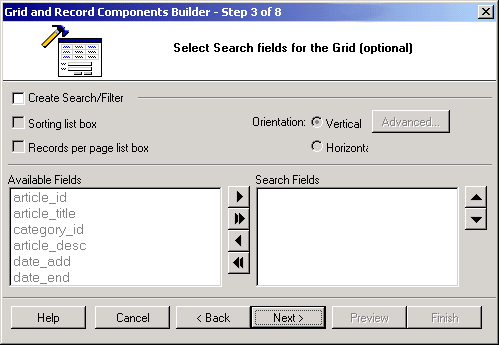
| Parameter | Description |
|---|---|
| Create Search/Filter | Select this option to indicate your intention to create a search form. |
| Sorting list box | If selected, the search form will have two listboxes for sorting. The first one will contain a list of all the available fields so that the user can select the field to sort by. The user will also be able to indicate the desired sort order (ASC, DESC) using the second listbox. |
| Records per page list box | If selected the search form will have a listbox that can be used to specify the number of records to be returned per page after the search is conducted. |
| Orientation | Specify whether the search form should be vertically or horizontally oriented. |
| Advanced... | Click on this button to specify the advanced search option such as submit method, type and other properties. If AND is selected, the search form will have an input form control for all the fields. Otherwise, if OR is selected, the search form will have only one input form control. Any value entered into the single control will be used to search against all the fields in the form. After you set the advanced options you can use the 'Preview' button to see how the form looks like with either option selected. |
| Available Fields | This listbox shows all the fields available in the table or view. |
| Search Fields | These are the fields to be shown in the search form. They are selected from among the Available Fields. |
|
Select an Available Field then click this button to add it to the form. |
|
Click this button to add ALL Available Fields to the form. |
|
Select a form field then click this button to remove it from the form. |
|
Click this button to remove all fields from the form. |
|
Select a form field then click this button to move it upwards in the order of appearance. |
|
Select a form field then click this button to move it downwards in the order of appearance. |
| Control Type | Specify the control type to be used for each of the fields in the form. |
You can now specify the type of sorting and navigation controls to appear in the grid form.
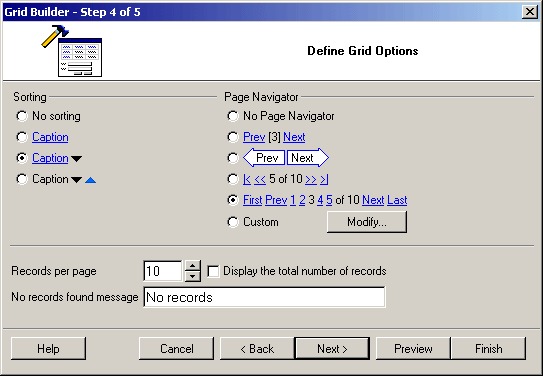
| Parameter | Description |
|---|---|
| Sorting | Select the type of sorting controls that you want to have in the grid. |
| Page Navigator | Select the type of Navigation controls that you want to have in the grid. |
| Modify | If you want to have custom navigation controls on the form, click on this button to open the 'Custom Navigator' window where you can customize the controls to suit your needs. |
| Records per page | Specify the default number of records to be shown per page. |
| No records found message | Specify the message that will be displayed in the grid if there are no records to be shown. |
| Display the total number of records | Specify if the label which shows the total number of records in the recordset should be displayed above the grid. |
The last step in configuring the grid involves selecting the field to be used to link the records in the grid to the details in the record form. You can select any one of the fields that are already in the grid or alternatively, you can specify a new column whose sole purpose will be to act as the link to the record form.
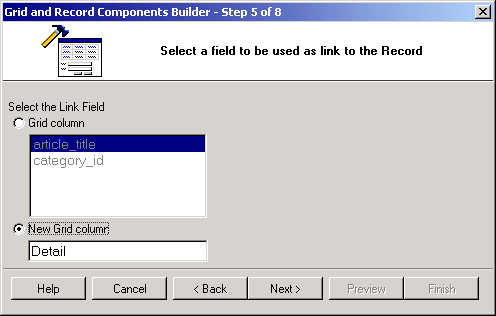
The next set of windows pertains to the configuration of the record form. The record form will be based on the same table as was the grid form but you have the option of selecting different fields to appear in the record form. After adding the fields, you should also select the Control Type to be used for each of the fields.
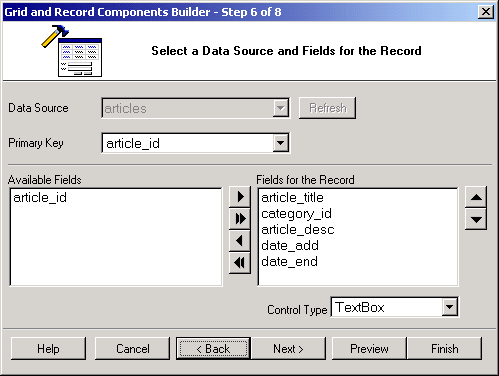
At this point, you can use the Preview button to see how the forms look.
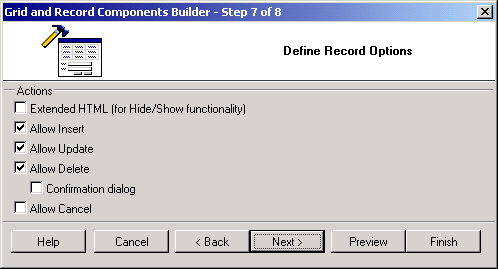
Next, select the type of operations you want the user to be able to perform using the record form. In the illustration below, the 'Allow Delete' option is disabled meaning that the record form will not allow the user to delete any existing records.
In the last step, select a theme to be used to display both forms.
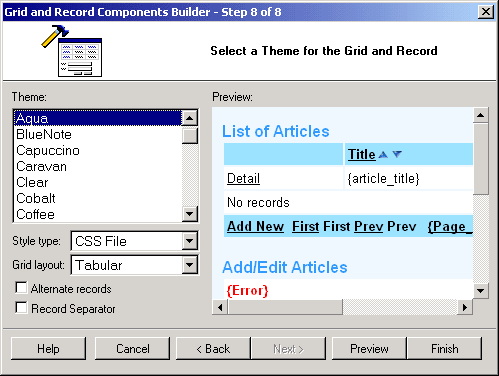
You can use the Preview button to see how the forms will look like then click on the Finish button to close the builder and generate the forms.